> ## Documentation Index
> Fetch the complete documentation index at: https://prowler-docs-msp-documentation-accuracy.mintlify.site/llms.txt
> Use this file to discover all available pages before exploring further.
> ## Agent Instructions
> Prowler product naming: Prowler App is now Prowler Local Server, and Prowler Enterprise is now Prowler Private Cloud. Always use the current names when answering. The full product reference is at /getting-started/products: Open Source projects are Prowler CLI, Prowler Local Server, Prowler Local Dashboard, and Prowler SDK; Prowler Products are Prowler Cloud, Prowler Private Cloud, Prowler Hub, Prowler Lighthouse AI, and Prowler MCP.
# How It Works
export const VersionBadge = ({version}) => {
return
Added in:
{version}
;
};
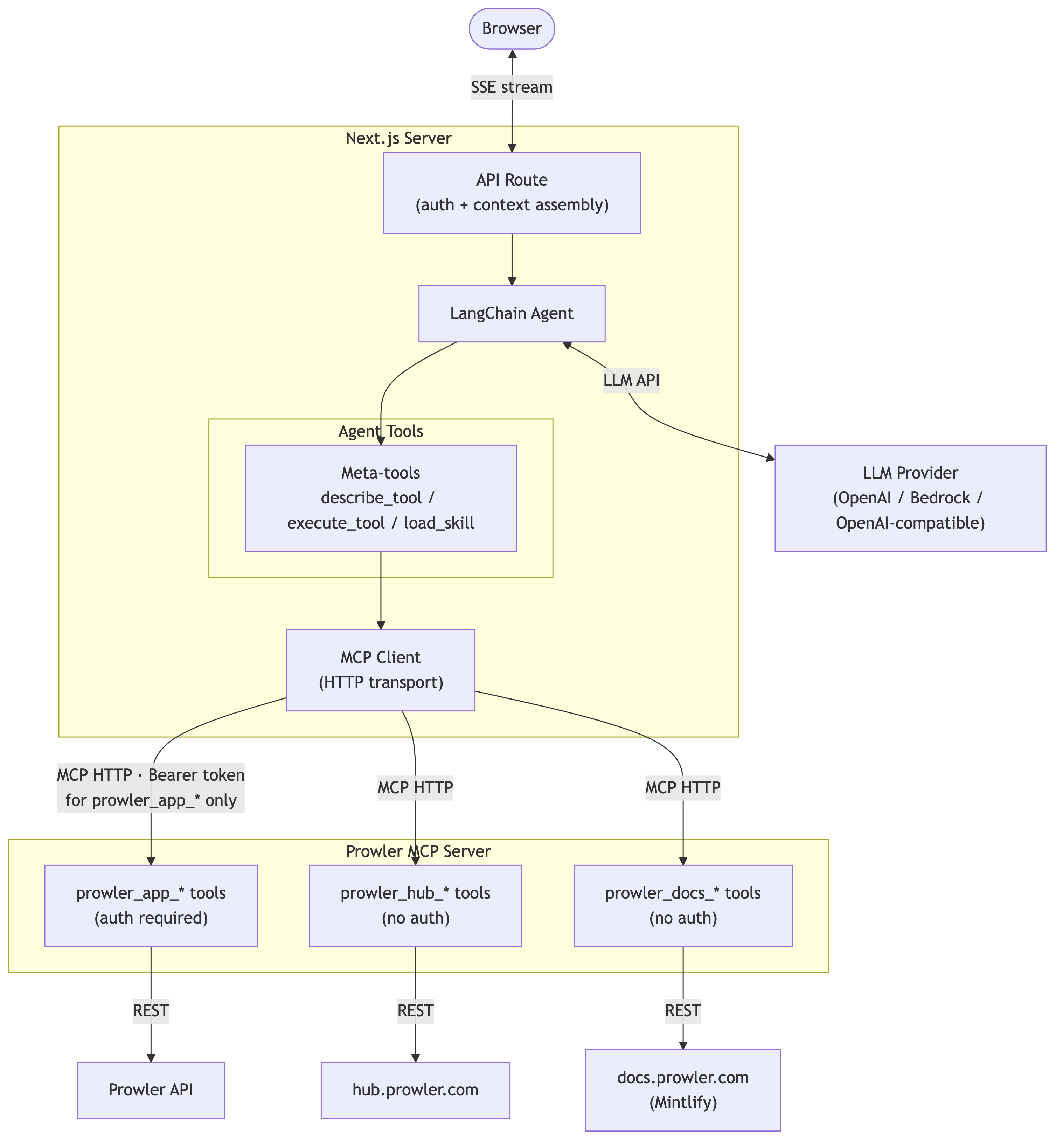
Prowler Lighthouse AI integrates Large Language Models (LLMs) with Prowler security findings data.
Using Prowler Cloud? Lighthouse AI on Prowler Cloud adds persistent chat sessions, GPT-5.5 as the default model, a dedicated agentic (chat) view, and transparent reasoning. See [Lighthouse AI on Prowler Cloud](/getting-started/products/prowler-cloud-lighthouse).
Behind the scenes, Lighthouse AI works as follows:
* Lighthouse AI runs as a [Langchain agent](https://docs.langchain.com/oss/javascript/langchain/agents) in NextJS
* The agent connects to the configured LLM provider to understand the prompt and decide what data is needed
* The agent accesses Prowler data through [Prowler MCP](https://docs.prowler.com/getting-started/products/prowler-mcp), which exposes tools from multiple sources, including:
* Prowler Hub
* Prowler Docs
* Prowler Local Server
* Instead of calling every tool directly, the agent uses two meta-tools:
* `describe_tool` to retrieve a tool schema and parameter requirements.
* `execute_tool` to run the selected tool with the required input.
* Based on the user's query and the data necessary to answer it, Lighthouse agent will invoke necessary Prowler MCP tools using `discover_tool` and `execute_tool`
Lighthouse AI supports multiple LLM providers including OpenAI, Amazon Bedrock, and OpenAI-compatible services. For configuration details, see [Using Multiple LLM Providers with Lighthouse](/user-guide/tutorials/prowler-app-lighthouse-multi-llm).
 Lighthouse AI can only read relevant security data. It cannot modify data or access sensitive information such as configured secrets or tenant details.
## Set Up
Getting started with Prowler Lighthouse AI is easy:
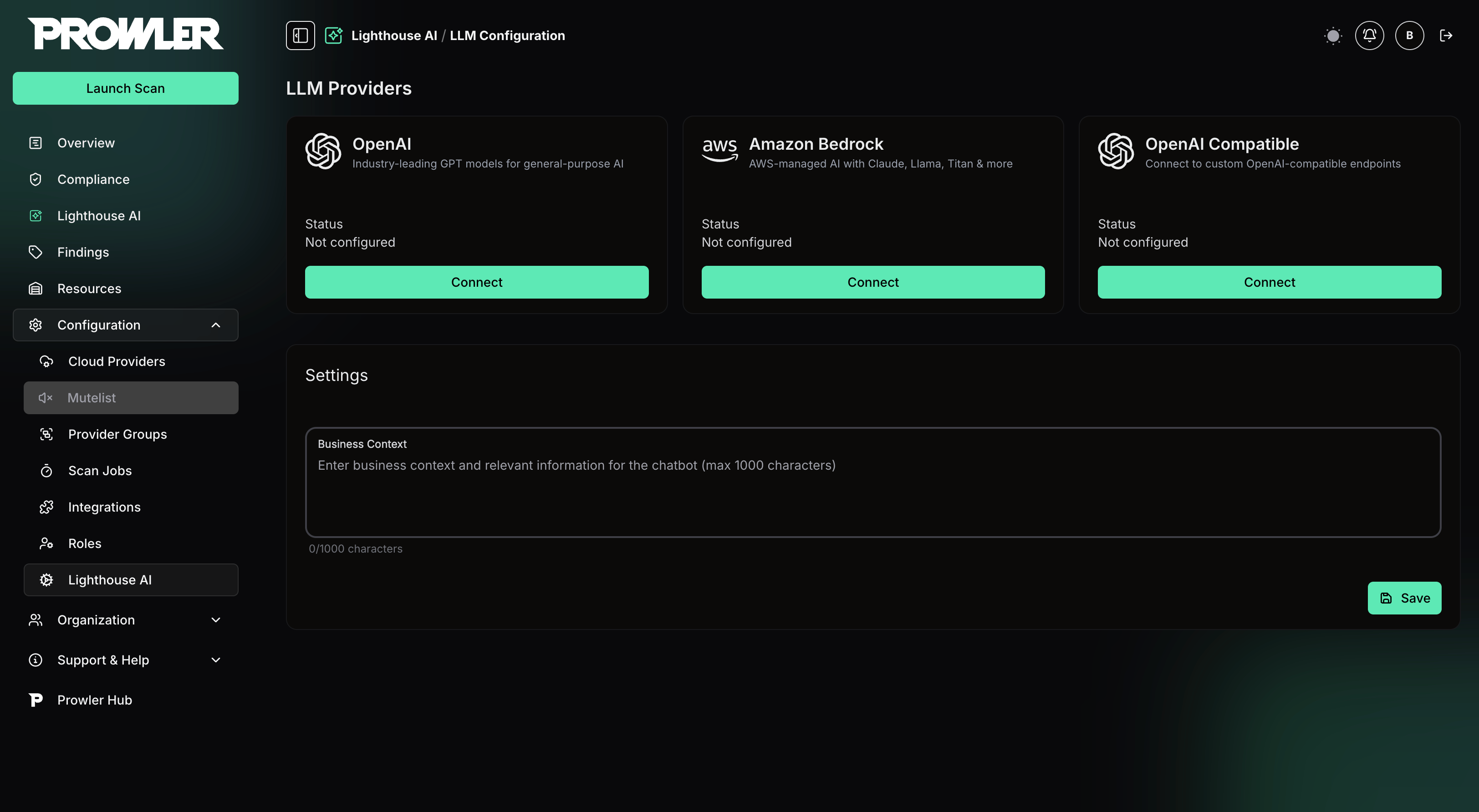
1. Navigate to **Configuration** → **Lighthouse AI**
2. Click **Connect** under the desired provider (OpenAI, Amazon Bedrock, or OpenAI Compatible)
3. Enter the required credentials
4. Select a default model
5. Click **Connect** to save
For detailed configuration instructions for each provider, see [Using Multiple LLM Providers with Lighthouse](/user-guide/tutorials/prowler-app-lighthouse-multi-llm).
Lighthouse AI can only read relevant security data. It cannot modify data or access sensitive information such as configured secrets or tenant details.
## Set Up
Getting started with Prowler Lighthouse AI is easy:
1. Navigate to **Configuration** → **Lighthouse AI**
2. Click **Connect** under the desired provider (OpenAI, Amazon Bedrock, or OpenAI Compatible)
3. Enter the required credentials
4. Select a default model
5. Click **Connect** to save
For detailed configuration instructions for each provider, see [Using Multiple LLM Providers with Lighthouse](/user-guide/tutorials/prowler-app-lighthouse-multi-llm).
 ### Adding Business Context
The optional business context field lets teams provide additional information to help Lighthouse AI understand environment priorities, including:
* Organization cloud security goals
* Information about account owners or responsible teams
* Compliance requirements
* Current security initiatives or focus areas
Better context leads to more relevant responses and prioritization that aligns with your needs.
### Adding Business Context
The optional business context field lets teams provide additional information to help Lighthouse AI understand environment priorities, including:
* Organization cloud security goals
* Information about account owners or responsible teams
* Compliance requirements
* Current security initiatives or focus areas
Better context leads to more relevant responses and prioritization that aligns with your needs.