

 About Us
Common Setup
Authentication Methods Overview
Prowler offers three authentication methods. Fine-Grained Personal Access Tokens are recommended for most use cases.Which should I choose?
- Personal scanning or quick setup: Use Fine-Grained PAT
- Organization-wide scanning or CI/CD pipelines: Use GitHub App (recommended for production)
- Building apps with user authorization: Use OAuth App
Required Permissions
Required permissions depend on the scan scope: user repositories, organization repositories, or both.Repository Permissions
Required for scanning repository security settings:Pull requests permission is optional. It’s only needed if you want to audit PR-specific settings beyond what branch protection provides.
Organization Permissions
Required for scanning organization-level security settings:For Fine-Grained PATs: Organization permissions only appear when the Resource Owner is set to an organization (not your personal account).For GitHub Apps: Organization permissions are configured during app creation and apply to all organizations where the app is installed.
Account Permissions (Fine-Grained PAT only)
GitHub Apps don’t have account-level permissions - they operate at the organization/repository level.
Permissions and Check Coverage
With the Read-only permissions listed above, Prowler can run:
Check that returns
MANUAL status with Read-only permissions:
repository_branch_delete_on_merge_enabled
Step-by-Step Permission Assignment
Fine-Grained Personal Access Token (Recommended for Individual Use)
Benefits of Fine-Grained Tokens Fine-Grained Personal Access Tokens are ideal for:- Individual users scanning their own repositories
- Quick setup without app registration overhead
- Temporary access with mandatory expiration
- Repository-specific access when you only need to scan certain repos
- Navigate to GitHub Settings > Developer settings.
- Click Personal access tokens > Fine-grained tokens > Generate new token.
-
Configure basic settings:
- Token name: Descriptive name (e.g., “Prowler Security Scanner”)
- Expiration: 90 days or less (recommended)
- Resource owner:
- Personal account (for user repositories)
- Organization name (for organization scanning - requires admin approval)
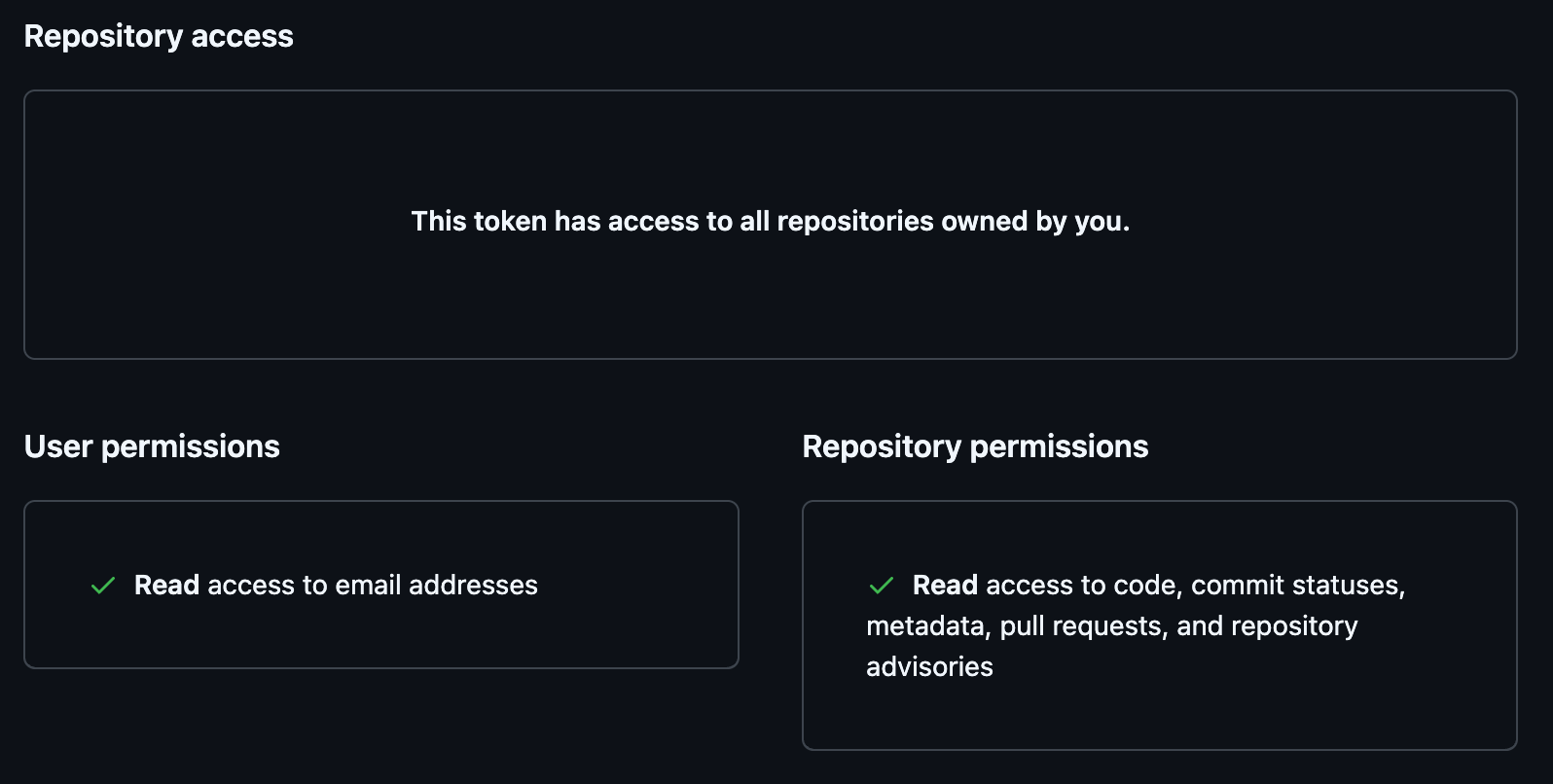
- Repository access: “All repositories” (recommended)
-
Configure Repository permissions:
- Administration: Read
- Contents: Read
- Metadata: Read (auto-selected)
- Dependabot alerts: Read
-
Configure Organization permissions (only appears when Resource owner is an organization):
- Administration: Read
- Members: Read
-
Configure Account permissions:
- Email addresses: Read (optional)
- Click Generate token and copy the token immediately.
OAuth App Token
Recommended OAuth App Use Cases: Use OAuth App Tokens when building applications that need delegated user permissions and explicit user authorization. OAuth Scopes:repo: Full control of repositoriesread:org: Read organization and team membershipread:user: Read user profile data
- Navigate to GitHub Settings > Developer settings > OAuth Apps.
-
Click New OAuth App and complete:
- Application name
- Homepage URL
- Authorization callback URL
-
Obtain authorization code:
-
Exchange authorization code for access token:
GitHub App Credentials
When to Use GitHub AppsGitHub Apps are ideal for:
- Organization-wide scanning without tying access to a personal account
- CI/CD pipelines where you need machine identity (not user-based)
- Multi-organization setups with centralized app management
- Audit compliance where you need to track app-level access separately from users
Organization permissions:
Create a GitHub App:
- Navigate to GitHub Settings > Developer settings > GitHub Apps.
-
Click New GitHub App and complete:
- GitHub App name: Descriptive name (e.g., “Prowler Security Scanner”)
- Homepage URL: Your organization’s URL or Prowler documentation
- Webhook: Uncheck “Active” (Prowler doesn’t need webhooks)
-
Configure Repository permissions (see table above):
- Administration: Read
- Contents: Read
- Metadata: Read (auto-selected)
- Dependabot alerts: Read
-
Configure Organization permissions (see table above):
- Administration: Read
- Members: Read
-
Under Where can this GitHub App be installed?, select:
- “Only on this account” for single-organization use
- “Any account” if you need to install across multiple organizations
- Click Create GitHub App.
-
On the app settings page:
- Record the App ID (displayed at the top)
- Click Generate a private key and download the
.pemfile
-
Install the GitHub App:
- Click Install App in the left sidebar
- Select target account/organization
- Choose “All repositories” or select specific repositories
- Click Install
Prowler Cloud Authentication
For step-by-step setup instructions for Prowler Cloud, see the Getting Started Guide.Using Personal Access Token
- In Prowler Cloud, navigate to Configuration > Providers > Add Provider > GitHub.
- Enter your GitHub Account ID (username or organization name).
- Select Personal Access Token as the authentication method.
- Enter your Fine-Grained Personal Access Token.
- Click Verify to test the connection, then Save.
Using OAuth App Token
- Follow the same steps as Personal Access Token.
- Select OAuth App Token as the authentication method.
- Enter your OAuth App Token.
Using GitHub App
- Follow the same steps as Personal Access Token.
- Select GitHub App as the authentication method.
-
Enter your GitHub App ID and upload the private key (
.pemfile).
Prowler CLI Authentication
Authentication Methods
Prowler CLI automatically detects credentials using environment variables in this order:GITHUB_PERSONAL_ACCESS_TOKENGITHUB_OAUTH_APP_TOKENGITHUB_APP_IDandGITHUB_APP_KEY
Using Environment Variables (Recommended)
Using CLI Flags
Scan Scope
Scan user repositories:Troubleshooting
”Insufficient Permissions” Errors
Symptom: Checks fail or returnMANUAL status.
Solutions:
- Verify token has all required permissions
- For organization scans, ensure organization approved the Fine-Grained Token
- For merge settings checks, accept
MANUALstatus (Write permission not recommended)
“No Organizations Found”
Symptom: Prowler doesn’t find organizations even though you’re a member. Cause: Fine-Grained Token’s Resource Owner is set to personal account. Solution: Create a new token with Resource Owner set to the organization and get it approved by an admin.Organization Checks Return MANUAL
Symptom: Checks like organization_members_mfa_required return MANUAL.
Cause: Token lacks Organization → Administration: Read permission.
Solutions:
- Edit token and grant
Organization → Administration: Read - Ensure token’s Resource owner is the organization (not personal account)
- Get organization admin approval
Token Not Showing Organization Permissions
Symptom: Can’t find Organization permissions section when creating token. Cause: Resource owner is set to personal account. Solution: Change Resource owner dropdown to the organization name. Organization permissions section will appear.Rate Limiting
Symptom: “API rate limit exceeded” errors. Solutions:- Scan during off-peak hours
- Use
--repositoryto scan specific repos instead of all - Implement delays between scans
Token Expired or Revoked
Symptom: Authentication fails with valid-looking token. Solutions:- Check token expiration date in GitHub settings
- Verify token wasn’t revoked
- For Fine-Grained Tokens, check if organization approval was revoked
- Generate a new token