

 About Us
Authentication Methods
Prowler supports the following authentication methods for OCI:- Config File Authentication (using
~/.oci/config)- OCI Session Authentication (Recommended) - Automatically generates the config file via browser login
- Manual API Key Setup - Manually create the config file with static API keys
- Instance Principal Authentication - For Prowler running inside OCI compute instances
- Environment Variables (Limited Support)
~/.oci/config file is generated:
- Session Authentication: Automatically created via browser login with temporary session tokens
- Manual Setup: You manually generate static API keys and create the config file
OCI Session Authentication
This is the recommended method for config file authentication as it automatically generates the config file and doesn’t require managing static API keys.Prerequisites
You need to have the OCI CLI installed to use session authentication. For installation instructions, see the OCI CLI Installation Guide. Verify your OCI CLI installation:How It Works
Theoci session authenticate command uses your browser to authenticate and creates temporary session tokens that are more secure than static API keys.
Step 1: Authenticate with OCI Session
- Open your default browser
- Redirect you to OCI Console login
- Automatically create/update
~/.oci/configwith session tokens - Store session credentials securely
Step 2: Add User OCID to Config File
After runningoci session authenticate, you need to manually add your user OCID to the config file:
Get your user OCID from the OCI Console:
Navigate to: Identity & Security → Users → Click your username → Copy the OCID
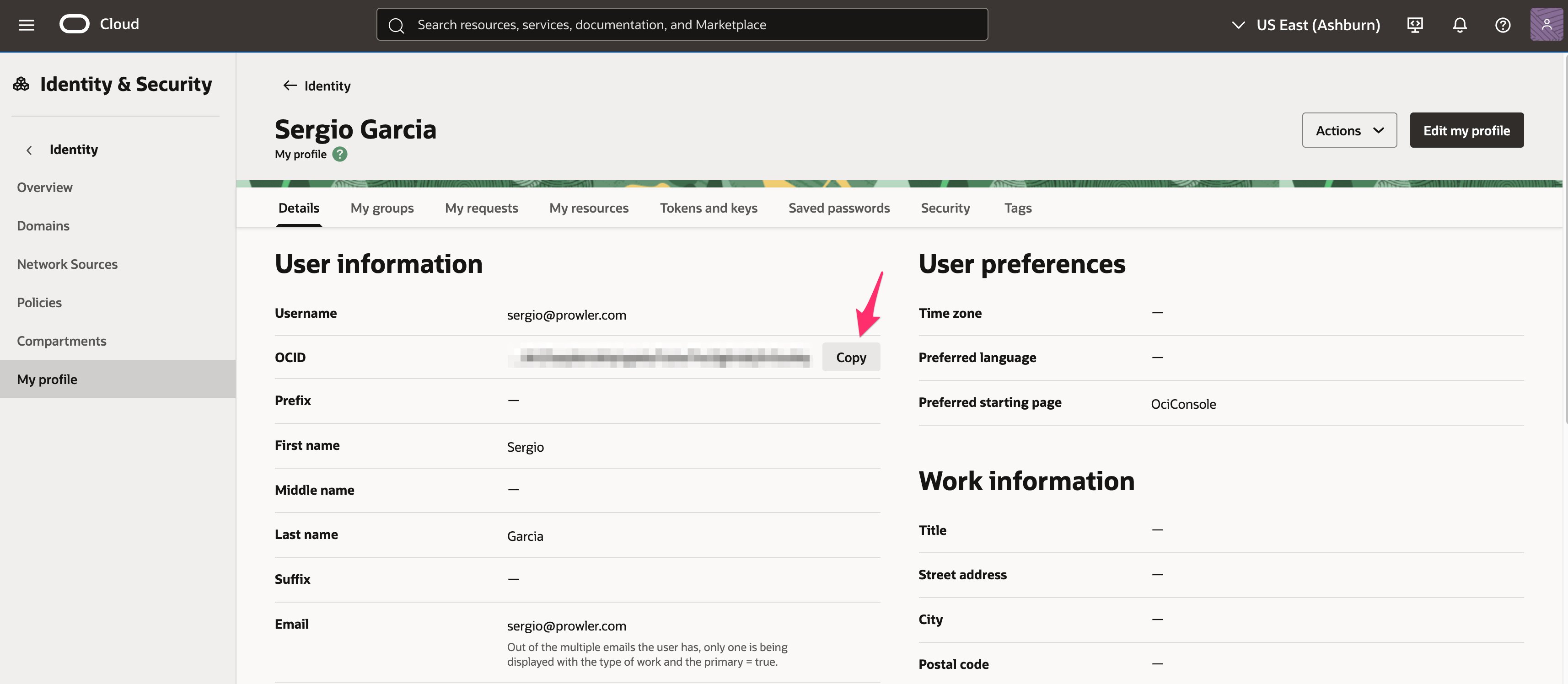
~/.oci/config and add the user parameter:
Step 3: Run Prowler
Advantages of Session Authentication
- No Manual Key Generation: No need to generate RSA key pairs manually
- Automatic Rotation: Session tokens expire and can be refreshed
- Browser-Based Login: Uses your existing OCI Console credentials
- More Secure: Temporary credentials reduce the risk of long-term credential exposure
Session Expiration
Session tokens typically expire after a period of time. When your session expires, simply run:Config File Authentication (Manual API Key Setup)
If you prefer to manually generate API keys instead of using browser-based session authentication, you can create the config file yourself with static API keys. Note: This method uses the same~/.oci/config file as session authentication, but with static API keys instead of temporary session tokens.
Default Configuration
By default, Prowler uses the OCI configuration file located at~/.oci/config.
Config file structure:
Multiple Profiles
You can define multiple profiles in your config file:Custom Config File Path
Use a config file from a custom location:Setting Up API Keys
Option A: Generate API Key Using OCI Console (Simpler)
- Log in to OCI Console
- Navigate to Identity → Users → Select your user
- In the Resources section, click API Keys
- Click Add API Key
- Select Generate API Key Pair
-
Click Download Private Key - save this file as
~/.oci/oci_api_key.pem - Click Add
-
The console will display a configuration file preview with:
userOCIDfingerprinttenancyOCIDregion
-
Copy the entire configuration snippet from the console and paste it into
~/.oci/config -
Add the
key_fileparameter pointing to your downloaded private key:
- Set proper permissions:
Option B: Generate API Key Manually
- Generate the key pair locally:
-
Upload the public key to OCI Console:
- Navigate to Identity → Users → Select your user
- In the Resources section, click API Keys
- Click Add API Key
- Select Paste Public Key or Choose Public Key File
- Paste or upload the contents of
~/.oci/oci_api_key_public.pem - Click Add
- The console will display the configuration file preview with your user OCID, fingerprint, tenancy OCID, and region.
-
Copy the configuration snippet from the console and create
~/.oci/config:
- Set proper permissions:
Test Authentication
After setting up your API keys with either option, test the authentication:Instance Principal Authentication
Instance Principal authentication allows OCI compute instances to authenticate without storing credentials. IMPORTANT: This authentication method only works when Prowler is running inside an OCI compute instance. If you’re running Prowler from your local machine or outside OCI, use OCI Session Authentication or Config File Authentication instead.Prerequisites
- Prowler must be running on an OCI compute instance
- Dynamic Group: Create a dynamic group that includes your compute instance
- Policy: Create policies granting the dynamic group access to resources
Step 1: Create Dynamic Group
- Navigate to Identity → Dynamic Groups
- Click Create Dynamic Group
- Enter a name (e.g.,
prowler-instances) - Add matching rule:
Or for a specific instance:
Step 2: Create Policies
Create a policy allowing the dynamic group to read resources:Step 3: Run Prowler with Instance Principal
On the compute instance, run:Use Cases for Instance Principal
- Automated Security Scanning: Run Prowler on a schedule using cron
- CI/CD Pipelines: Integrate security checks in build pipelines
- Centralized Security Monitoring: Deploy Prowler on a dedicated security instance
Environment Variables
While OCI SDK supports environment variables, Prowler currently focuses on config file and instance principal authentication for better security and manageability. If you need to use environment variables, they will be picked up by the OCI SDK:Security Best Practices
API Key Security
-
Rotate API Keys Regularly
- OCI recommends rotating API keys every 90 days
- Prowler includes a check for this:
identity_user_api_keys_rotated_90_days
-
Use Separate Keys Per Environment
- Development, staging, and production should use different API keys
- Use profiles to manage multiple environments
-
Restrict Key Permissions
- Follow the principle of least privilege
- Grant only read permissions for security auditing
-
Secure Key Storage
-
Never Commit Keys to Version Control
- Add
~/.oci/to.gitignore - Use secret management systems for automation
- Add
Instance Principal Security
-
Use Specific Compartment Matching
Instead of:
-
Scope Policies Appropriately
- Grant access only to required resources
- Use compartment-level policies when possible
-
Monitor Dynamic Group Membership
- Regularly review which instances belong to security-related dynamic groups
- Use Cloud Guard to detect anomalous access patterns
Troubleshooting
Common Authentication Errors
Error: “ConfigFileNotFound”
Cause: OCI config file not found at default location Solution:Error: “InvalidKeyOrSignature”
Cause: Incorrect API key fingerprint or key file Solutions:-
Verify fingerprint matches OCI Console:
-
Check key file path in config:
-
Verify key permissions:
Error: “NotAuthenticated”
Cause: User OCID, tenancy OCID, or credentials incorrect Solutions:- Verify OCIDs in OCI Console
- Check that API key is uploaded to correct user
- Ensure user has not been deleted or disabled
- Test with OCI CLI:
Error: “InstancePrincipalNotEnabled”
Cause: Instance Principal not configured correctly Solutions:- Verify dynamic group includes your instance
- Check policies grant required permissions
- Ensure instance is in the correct compartment
- Test with: